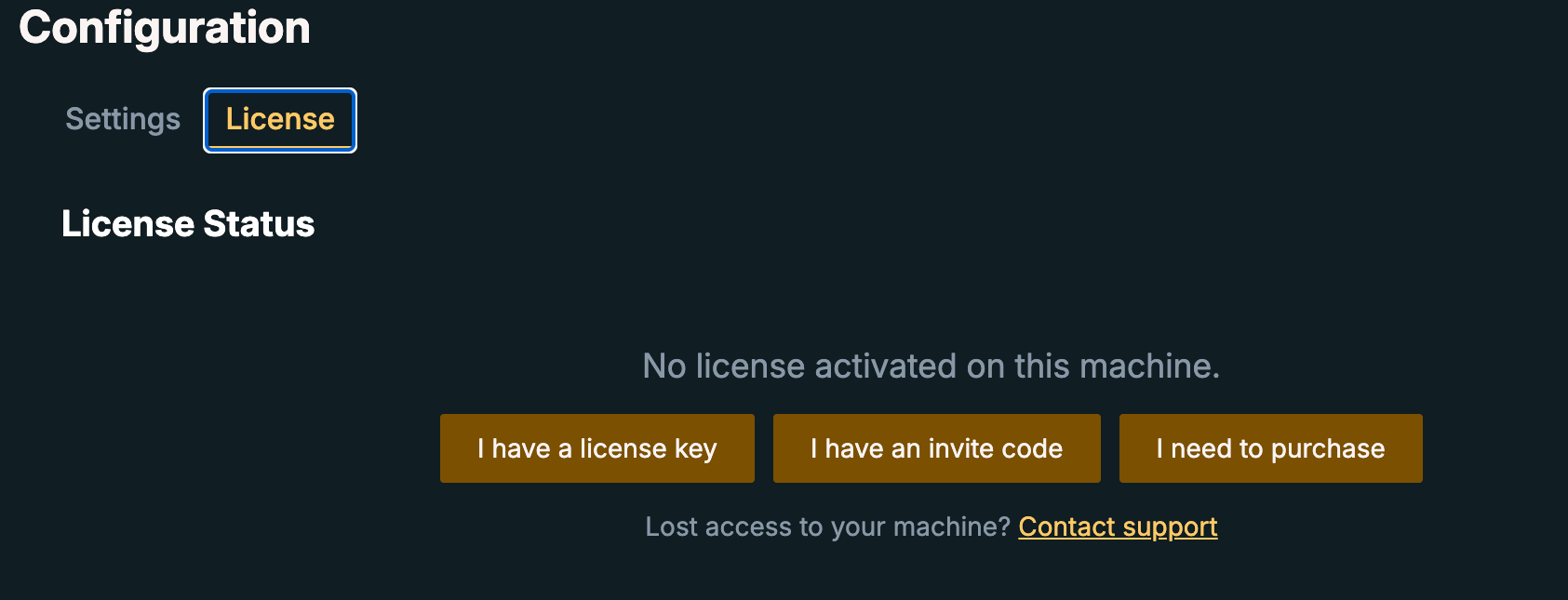
When your phase opens we email you a key that's unique to you. Open Scryglass within seven days, go to Configuration → License, choose I have a license key, and paste it in.
Updated 24 August 2026Applies to 0.8 and later3 min read
Before you start
Install the build for your platform first — the key is redeemed inside the app, not on this site. Your key arrives by email, is tied to your address, and works on one machine. You'll need it at Configuration → License.
NOTE
Keys are single-use and expire seven days after we send them. If yours has lapsed, reply to the invitation email and we'll issue another.
Steps
01
Open Scryglass and go to the Configuration page.
02
Open the License tab and choose I have a license key, then paste the key from your invitation email.
Beta keys go in under I have a license key — not the invite code button.
03
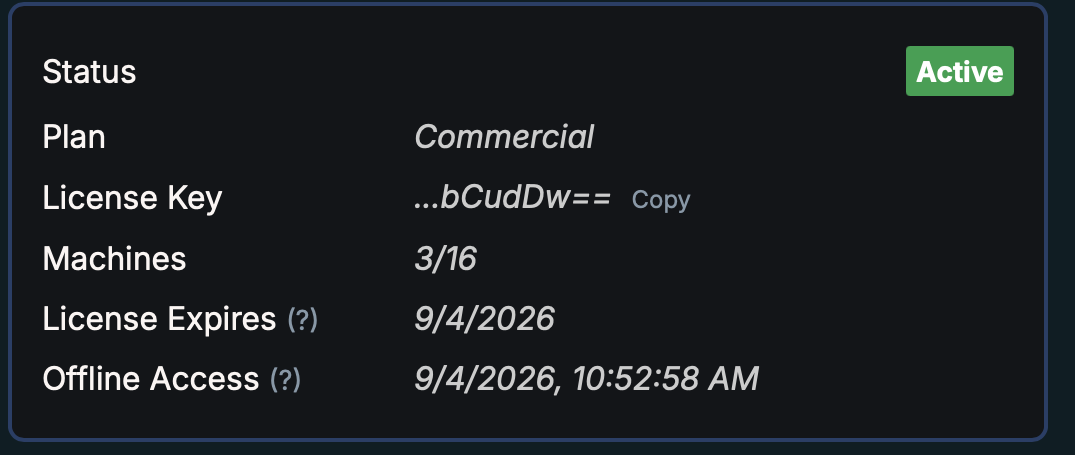
License Status flips to Active and shows your plan, machines and expiry date.
CAREFUL
Don't share your key. It's tied to your email address, and a key redeemed elsewhere can't be recovered by us.
What the License tab shows
A Commercial licence, active on three of its machines.
FIELDMEANING
StatusActive once the key is redeemed. Anything else means the app couldn't validate it.
PlanThe tier your key grants — Maker, Professional or Commercial.
License KeyThe last characters of your key, with a copy button. We never show it in full again.
MachinesMachines in use against what your plan allows — one on Maker, two on Professional, two or more on Commercial.
License ExpiresThe date this licence runs to.
Offline AccessHow long the app keeps working without reaching our licence server.
Still stuck? Send your version number — it's under the System button at the top right of the app — and what you were doing. Replies come from the team that builds the app.