
There's no installer wizard to talk you through, and nothing to configure before you launch. Download the build for your platform from getscryglass.com/download, install it the way your OS expects, and run it.
The first launch, in order
Answer the analytics question. Scryglass asks once, before anything else, whether it may send anonymous usage counts. Either answer is fine, and the choice lives on afterwards as Send usage info on the Configuration page. Exactly what's collected →
You land on Dashboards, with generic widgets and no data behind them. That's expected — the app is unlicensed and nothing is mapped yet.
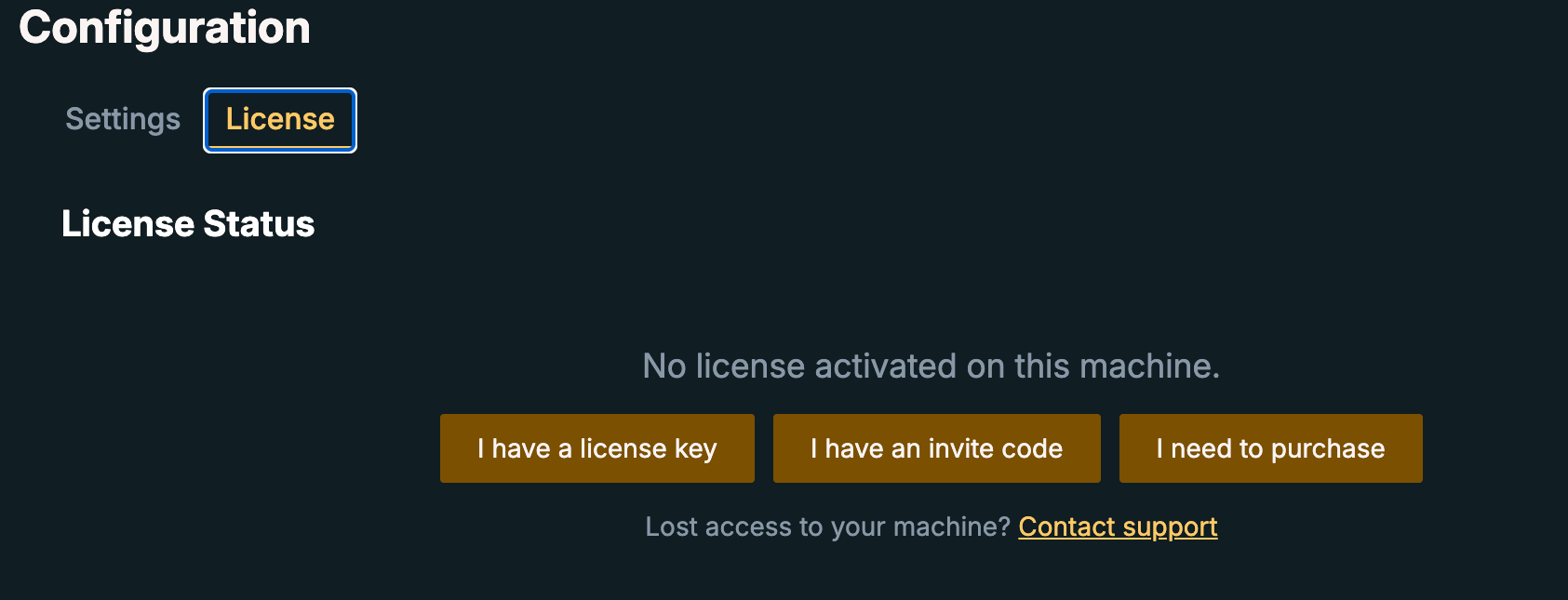
Add a licence at Configuration → License. I need to purchase buys a tier, I have a license key activates one you already have, and I have an invite code claims a seat someone invited you to. Everything licence-related lives on that one tab.
Go to Devices and map your hardware to channels. This is the real setup step: each device you attach becomes one or more channels, and channels are what the rest of the app reads from.
Go back to Dashboards. Mapped channels start producing data immediately, and the default widgets fill in. You're capturing.
On Linux, a one-time Linux device permissions setup is needed before any devices appear.
Unlicensed, Scryglass opens and replays sessions someone else captured but won't talk to hardware. If you were sent a session file to look at, you don't need a licence at all.
Making the dashboards yours
The default dashboard is a starting point, not a fixed layout. Add or remove widgets, choose which channels each widget reads, rearrange and resize them, set colours and fonts, and keep as many separate dashboards as you want — one per board, one per bug, one per colleague. None of it changes what's being captured; dashboards are only how you look at it.
Worth its own read once you're capturing: Devices & channels for mapping in detail, and Building a dashboard for widget and layout options.